SteamOS Companion GitHub

SteamOSCompanion

Control and monitor one SteamOS device from another over your local network: a Steam Deck, any handheld running SteamOS, or a living-room PC. Pair once, then wake it, change its display, or fix a screen that went dark, from the Quick Access menu.

Decky Loader plugin Latest release v0.5.15 MIT licensed Mobile app coming

SteamOS Companion is a Decky Loader plugin that lets a SteamOS device be controlled from another one on the same network. The same install can run as a Client, a Server, or Both. A client keeps one paired remote device: it shows connection state, wakes the device, sends power commands, previews and saves display modes, and sets the Gaming Mode display order. A server accepts authenticated requests only from clients its owner has approved by comparing a code on both screens. Everything runs over pinned TLS on your LAN. SteamOS Companion is an independent open-source project and is not affiliated with or endorsed by Valve Corporation.

Download for Decky v0.5.15 Omarchy desktop client Install guide Requires Decky Loader. ZIP and SHA256 are attached to every release.
How pairing works

From discovery to a paired device, one step at a time

The SteamOS handheld on the left pairs with a SteamOS living-room PC on the right. Watch what actually crosses the network, and what deliberately never does. Click any step to inspect it.

Client SteamOS handheld 192.168.1.20
SteamOS Companion
Remote device
No paired device yet.
Find devices
Enter address manually
Discovery
Scanning 192.168.1.0/24…
Bounded scan · 15 s budget · 256 hosts max
1 device found
Discovered
SteamOS device
https://192.168.1.42:18443
Certificate pinned
sha256:9f3a 27c1 b8e0 … 41e4 d2
Request pairing
Pairing
Generating verification nonce…
3qTfZk9wV2mL8hN1yRcAsg
Sending over the pinned channel
Pairing
Compare the code
00000000
Expires in 1:57 · Waiting for approval…
Cancel request
Pairing
Approved
Token received and stored locally
Scopes: Status · Power · Display
Wake target saved
Remote device
SteamOS device
Connected· Checked just now
Saved: 1920 × 1200 · 59 Hz
Restore saved display
Wake device
Server SteamOS device 192.168.1.42:18443
SteamOS Companion
Settings · Device mode
ClientControl another SteamOS device.
ServerAllow paired devices to control this device.
Accepting connectionson 0.0.0.0:18443
This device
Remote access to this device
Accepting connections on 0.0.0.0:18443
Identity and certificate ready
sha256:9f3a 27c1 b8e0 … 41e4 d2
Answers discovery with host_id and fingerprint
Incoming pairing
Handheld wants to pair
TLS channel binding verified
Deriving comparison code…
Incoming pairing
Handheld · Status · Power · Display
00000000
Approve only if both codes match.
Reject
Approve
Incoming pairing
Steam Deck · Status · Power · Display
75332470
Codes match on both screens.
Reject
Approve
Paired clients
Handheld
Paired · token hash stored
Status · Power · Display
Remove access
Paired clients
Handheld · seen just now
GET /v1/status → 200
POST /v1/power {request_id} → 202
Operation journaled and queryable
· Server listening on 0.0.0.0:18443 · TLS identity ready

Auto-plays. Selecting a step pauses.
Features

Everything one SteamOS device should be able to do for another

Each action is an enumerated operation with a confirmation where it matters. Nothing is replayed silently, and nothing on the wire is a shell command.

Remote device, at a glance

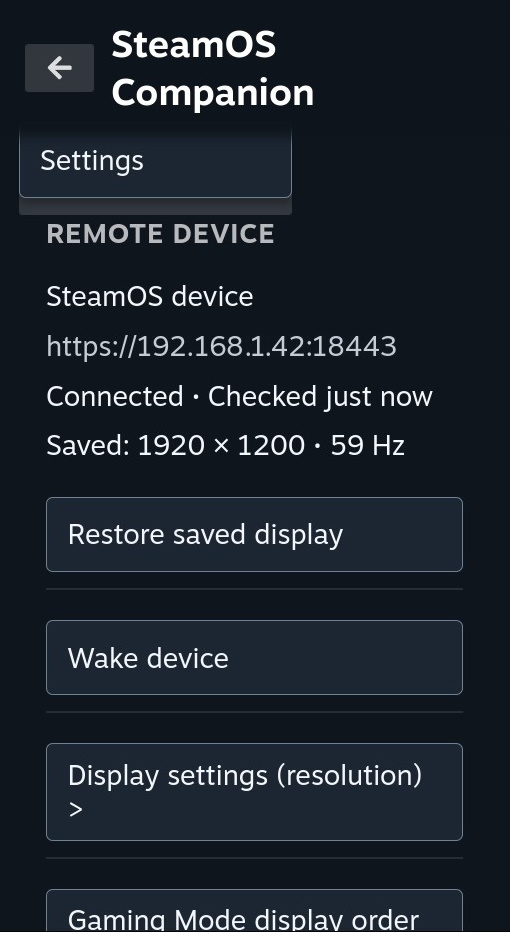
The Remote device view keeps connection state, the saved display mode and the actions you reach for most in one place: restore the saved display, wake the device, change resolution, reorder screens, or send a power command.

  • Wake-on-LAN target is saved automatically at pairing time.
  • Suspend, restart and shutdown are fixed verbs and always ask for confirmation.
  • An ambiguous mutation is never replayed; you acknowledge an explicit resend.
Client · Remote device
SteamOS Companion Remote device view showing a connected device, saved display mode, and action buttons

Display recovery with a safety net

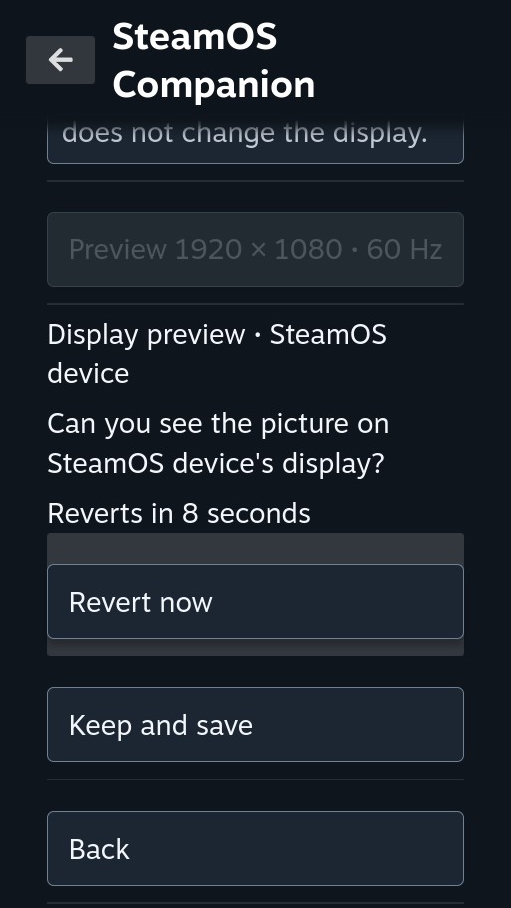
Docked to a TV that shows nothing? Preview a resolution and refresh rate on the paired device. It reverts automatically unless you confirm you can see the picture, and Revert is always offered first.

  • Keep and save writes the recovery profile only after the owner confirms.
  • Common resolutions and refresh rates by default; uncommon modes are an opt-in toggle.
  • Restore saved display brings back the last known-good mode in one press.
Client · Display preview
Display preview asking whether the picture is visible on the remote device, with a revert countdown

Gaming Mode display order

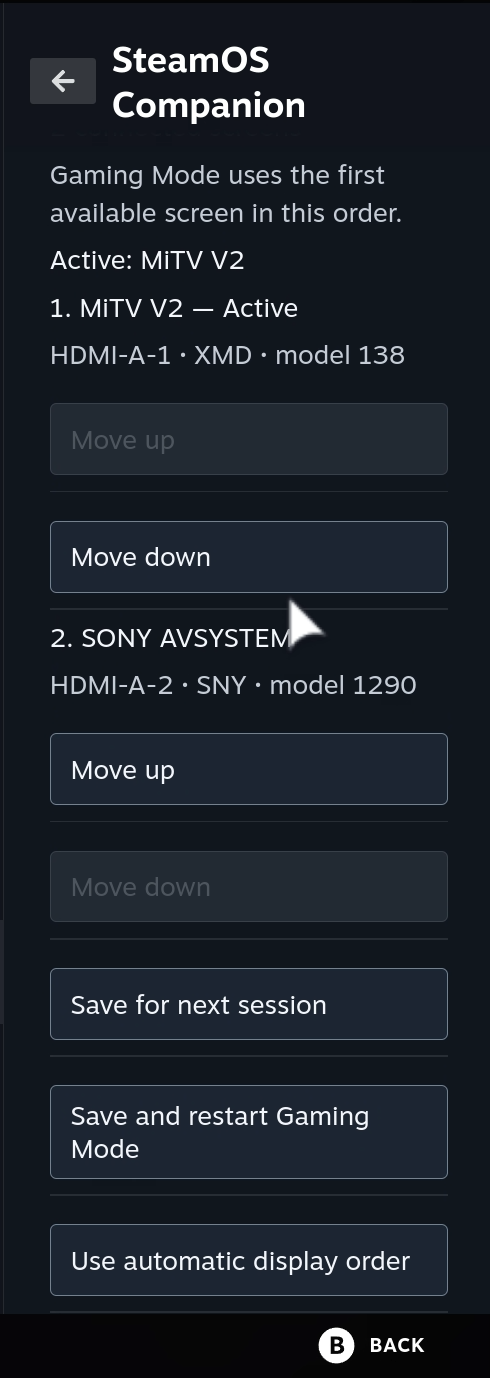
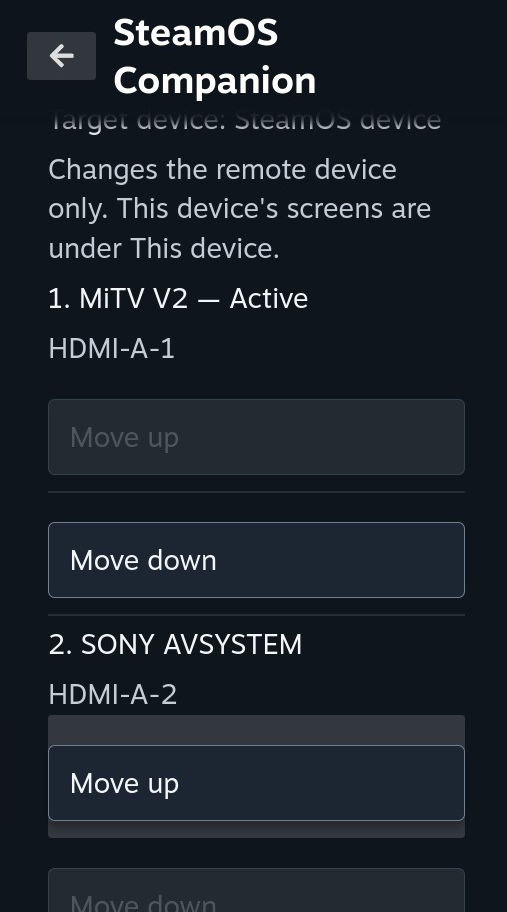
Choose which physical screen Gamescope should prefer when several are connected. Reorder with gamepad-friendly controls, then save for the next session or save and restart Gaming Mode right away.

  • Works locally under This device and remotely under Remote device; saving one never targets the other.
  • Connectors are read from Linux DRM with the display name, vendor and product ID, so a monitor can be matched to its HDMI or DP port.
  • Restart Gaming Mode recreates only the Gaming Mode session and asks first.
This device
Local Gaming Mode display order with two HDMI outputs and Move up and Move down controls
Client · Remote
Remote Gaming Mode display order for the paired device

Client, Server, or Both

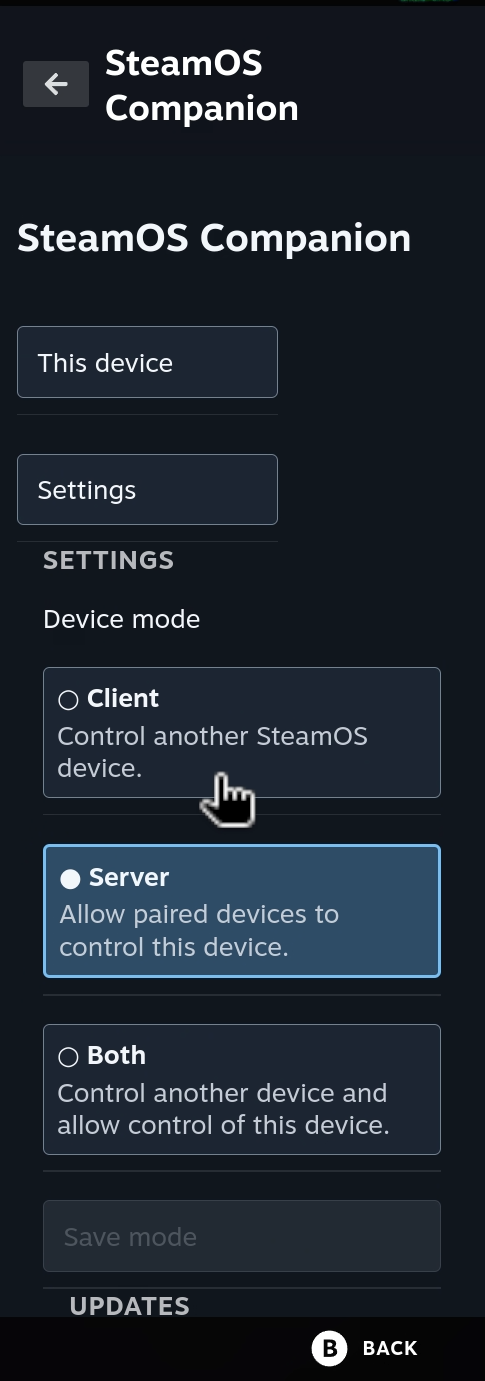
Pick a role on first launch. Changing it later is an explicit saved setting: host identities, listener settings, paired clients and recovery profiles are preserved when a role is added, and a pending display recovery is allowed to finish before the Server role stops.

  • Server keeps the Decky display bridge alive while the panel is closed.
  • A saved outgoing pairing and unresolved operations survive Client mode being disabled.
  • The listener accepts IPv4 on all interfaces by default, with an optional host or IP override.
Settings · Device mode
Device mode settings offering Client, Server, and Both

Updates without privileges

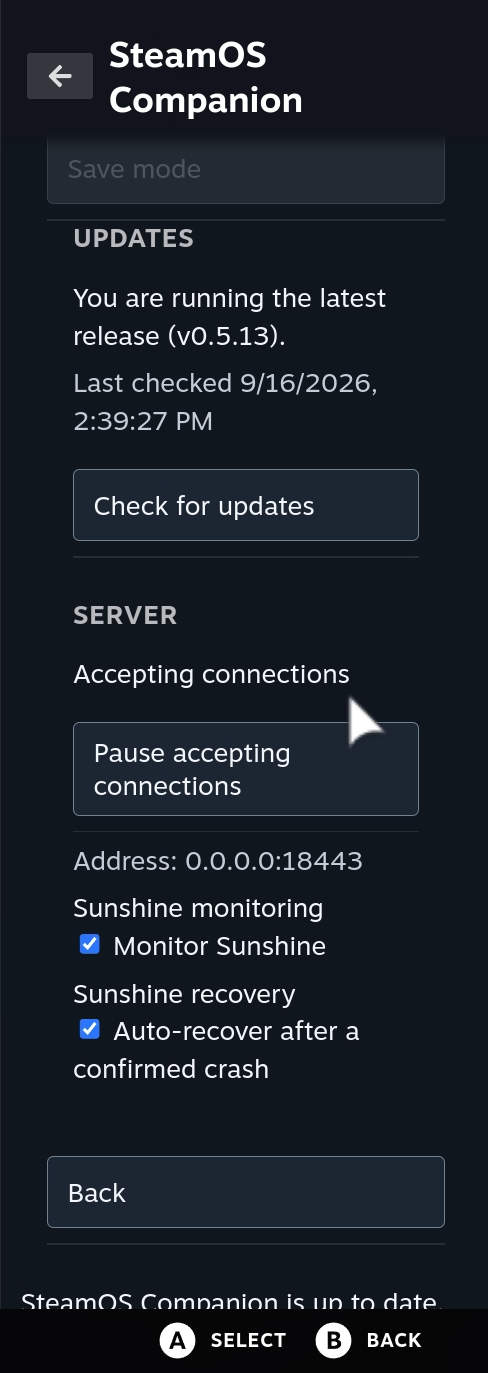
The plugin checks the latest stable GitHub release on start and every six hours. It validates the release assets and SHA256 before asking Decky Loader to download, verify, confirm and replace the plugin. No sudo, no root flag.

  • Inspect the release metadata under Settings → Updates before requesting an install.
  • Sunshine monitoring is off by default and can only be enabled locally in Decky settings.
  • With monitoring on, a confirmed running-to-stopped observation triggers one owner-plugin recovery request; a manual Recover Sunshine action stays available.
Settings · Updates
Updates section showing the latest release is installed, plus server and Sunshine monitoring settings
Security model

Built on an explicit, enumerated protocol

The v1 wire contract is a JSON schema with fixtures, shared by the Decky host and the Omarchy client. It never carries raw Steam payloads, arbitrary methods, PIDs, paths, commands or credentials.

Pinned certificate

At discovery the client records the host's sha256 certificate fingerprint. Every later connection must present exactly that certificate or it is refused.

A code that is derived, never sent

Both sides compute scrypt(nonce, "steamos-companion:v1:pairing-sas:" + fingerprint) and show eight digits. The code is a verification string, not a bearer credential.

TLS channel binding

The pairing request carries a binding derived from the exact TLS 1.2 session. The host derives the same value from its socket and rejects a mismatch before anything is stored.

Enumerated operations only

Power is suspend, restart or shutdown. Display changes name a host-issued output and mode. There is no route that takes a command.

Idempotent mutations

Every mutation carries a client-generated request_id and returns 202 Accepted. After a disconnect the client queries the operation journal instead of sending again.

Least privilege

Scopes are status.read, power.control and display.control. Tokens are stored only as hashes, at most four clients can be paired, and approval can never grant a scope that was not requested.

Install

Three ways onto the device

Decky Loader must already be installed. No reboot and no Decky service restart are required.

  1. Download the latest steamos-companion-decky-<version>.zip from the Releases page.
  2. Install the ZIP with Decky's plugin installer.
  3. If the plugin does not appear, use Decky's Reload Plugins action.

Then open the Quick Access menu, choose a device mode, and follow the pairing flow above.

What's next

A mobile app is on the way

The Decky plugin and the Omarchy widget are the first two clients of the v1 protocol. The next one fits in your pocket.

Planned

SteamOS Companion for iOS and Android

Pair your phone with the same comparison code, then check status, wake the machine, pick a display mode and reorder screens from the couch without picking up a handheld. It speaks the existing v1 protocol, so no server-side update will be needed.

Follow the releases page to hear when the first build lands.

Support the project

SteamOS Companion is free, MIT-licensed and built in spare time. If it saved you a trip to the TV, a coffee keeps the plugin, the desktop client and the upcoming mobile app moving.

Buy me a coffee

General FAQ

Do I need two Steam Decks?
No. Either side can be any device running SteamOS with Decky Loader: a Steam Deck, a handheld such as the ROG Ally, Legion Go S or MSI Claw running SteamOS, or a living-room PC. The client can also be a Linux desktop running the Omarchy client widget. Everything speaks the same v1 protocol.
Does any traffic leave my network?
No. Discovery is a bounded scan of the local subnet, pairing and control run over HTTPS on your LAN, and wake uses a broadcast magic packet. The only outbound call is the optional check of the latest GitHub release.
What can a paired client actually do?
Only what its scopes allow: read status, send one of three fixed power verbs, and perform display operations that name a host-issued output and mode. There is no route for arbitrary commands, methods, paths or process names.
What happens if I close the panel while pairing?
The pending request survives panel close and plugin reload on both sides. It expires 120 seconds after it was created if the owner has not approved it.
Is removing a pairing the same as revoking access?
No. Removing the local pairing on the client does not silently revoke server access; the Connection details flow explains the distinction. Use Remove access on the server's Paired clients list, or the client's revoke-self action, to invalidate the token.
Is SteamOS Companion affiliated with Valve?
No. It is an independent open-source project released under the MIT license and is not affiliated with or endorsed by Valve Corporation.

Display FAQ

Can it switch the active output live?
Not yet. Live connector switching stays disabled until the SteamOS build exposes a verified active-output adapter with recovery readback. Display order is saved as a guarded Gamescope --prefer-output priority list for the next Gaming Mode session, and the current scanout is reported with gamescopectl when available.
Does Restart Gaming Mode touch Desktop Mode?
No. It recreates only the Gaming Mode session to apply the saved output. It closes running games and briefly interrupts the Steam UI, so it always asks for confirmation first.
Where does the recovery profile come from?
Only from an explicit save: the host reads the current mode from the live Decky bridge, verifies the output identity and generation, and persists it after the owner confirms. A client never infers a recovery profile from an inventory read.